Calls
Calls is the history of the calls, meetings and faxes on your account. Use it to find a call, see what happened to it, and see how your calls are handled.
Users see their own calls. Administrators can also see all the calls on the account.
Tabs
- Calls:
A list of the calls, one row for each call. See The Call List.
- People:
How each person handles calls. See People.
- Analytics:
Answers to common questions about your calls, as charts. See Analytics.
- Call Flows:
Where your inbound calls go, from the number dialed to the outcome. See Call Flows.
- OnCall:
How your OnCall groups handle messages. See OnCall Report.
- Queues:
The live status of your call queues. See Queues.
Filters
All tabs use the same filters. When you change a filter on one tab, the other tabs use it too.
- My Calls / All Calls:
All Callsshows the calls of all users. Only administrators see this choice.- From and To:
The dates of the calls.
- Search:
A number, a name or an extension.
- Tags:
Show only the calls that have these tags. See Call Tags.
- Exclude internal calls:
Do not show calls between users on your account.
Refresh loads the calls again.
The Call List
Each row is one call. Click the arrow at the end of a row to see the details of the call: the call path, all the fields of the call record, and Download Record.
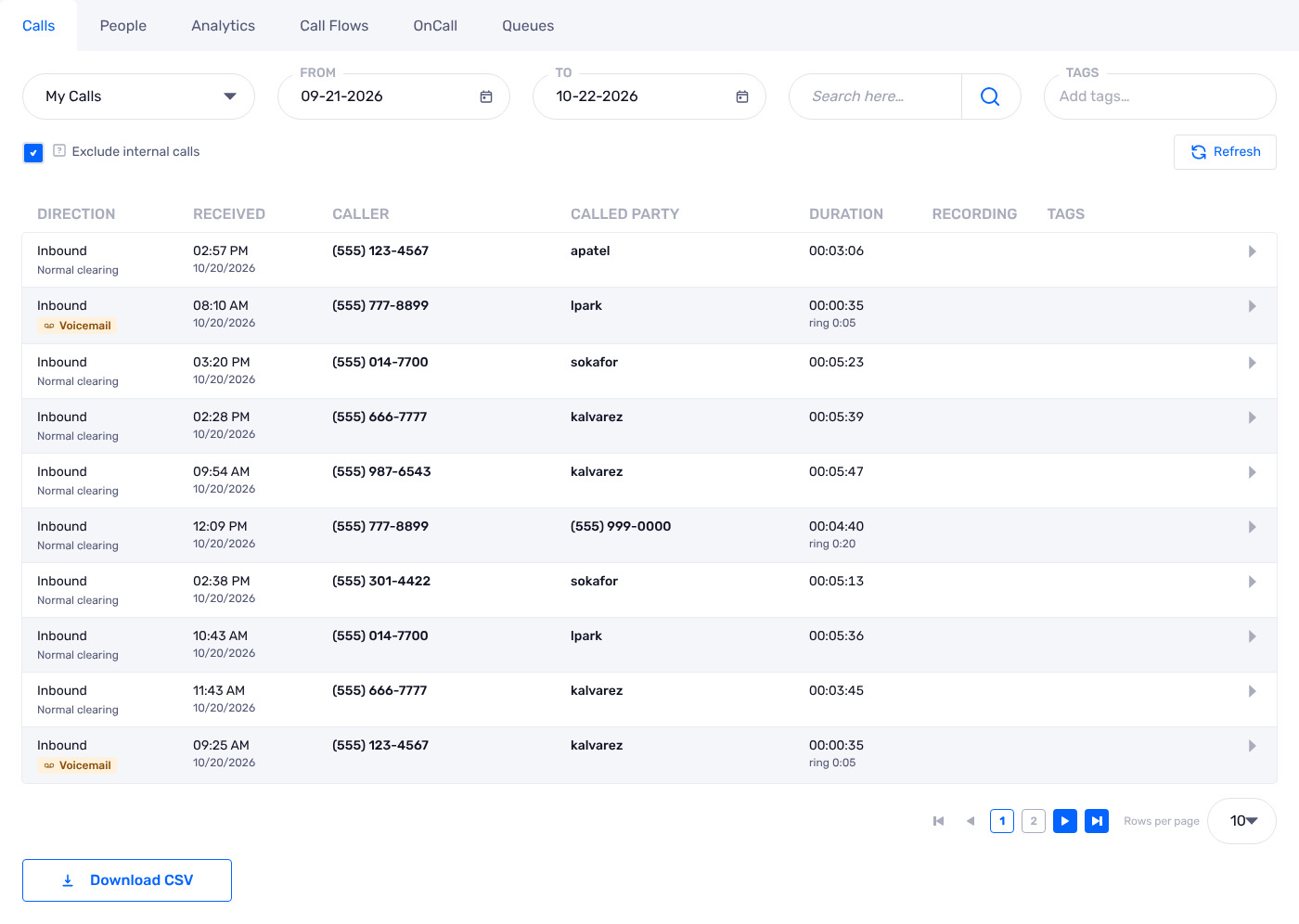
- Direction:
The direction of the call (
Inbound,OutboundorInternal), and the result, for exampleNormal clearingorVoicemail.- Received:
When the call started, in your time zone.
- Caller:
Who made the call. When the caller is one of your contacts and the call has no caller ID name, we show the contact name, with the number below.
- Called Party:
The number or the extension that was called. When it is one of your contacts, the contact name shows below the number.
- Duration:
How long the call lasted, and how long it rang.
- Recording:
If the call was recorded, play or download the recording here. Administrators can also delete the recording.
- Tags:
The tags of the call. See Call Tags.
A name that comes from your contacts has a small contact icon. Click the icon to open the contact. Put the pointer on the name to see the number that matched the contact. See Contact Matches.
Download CSV downloads a file with all the fields of the calls in the list. Use it to make your own reports in a spreadsheet.
Meetings in Calls
A meeting shows as one Conference row. The row shows the host, the room and the participants. Expand the row to see each participant, when they joined and left, and a timeline bar.
A participant who is one of your contacts shows the contact name, with the email address or the number below, and a contact icon.
A guest who is not one of your contacts has an
Add to Contactslink. We fill in the email address that the guest joined with, or the number that the person dialed in from.

Faxes in Calls
A fax that you send or receive also shows in the list. A sent fax shows Delivered, or Failed with the reason. To read the fax, go to Messages & Faxes.
OnCall Calls
An OnCall call shows an OnCall chip with its outcome, such as Patched live, Acked 15m 51s, Unread or Deleted unread. Expand the call to see the OnCall summary (every step, with times and names) and the Download OnCall Report button. See OnCall Call Records.
People
The People tab shows how each person handles the inbound calls that are routed to them.
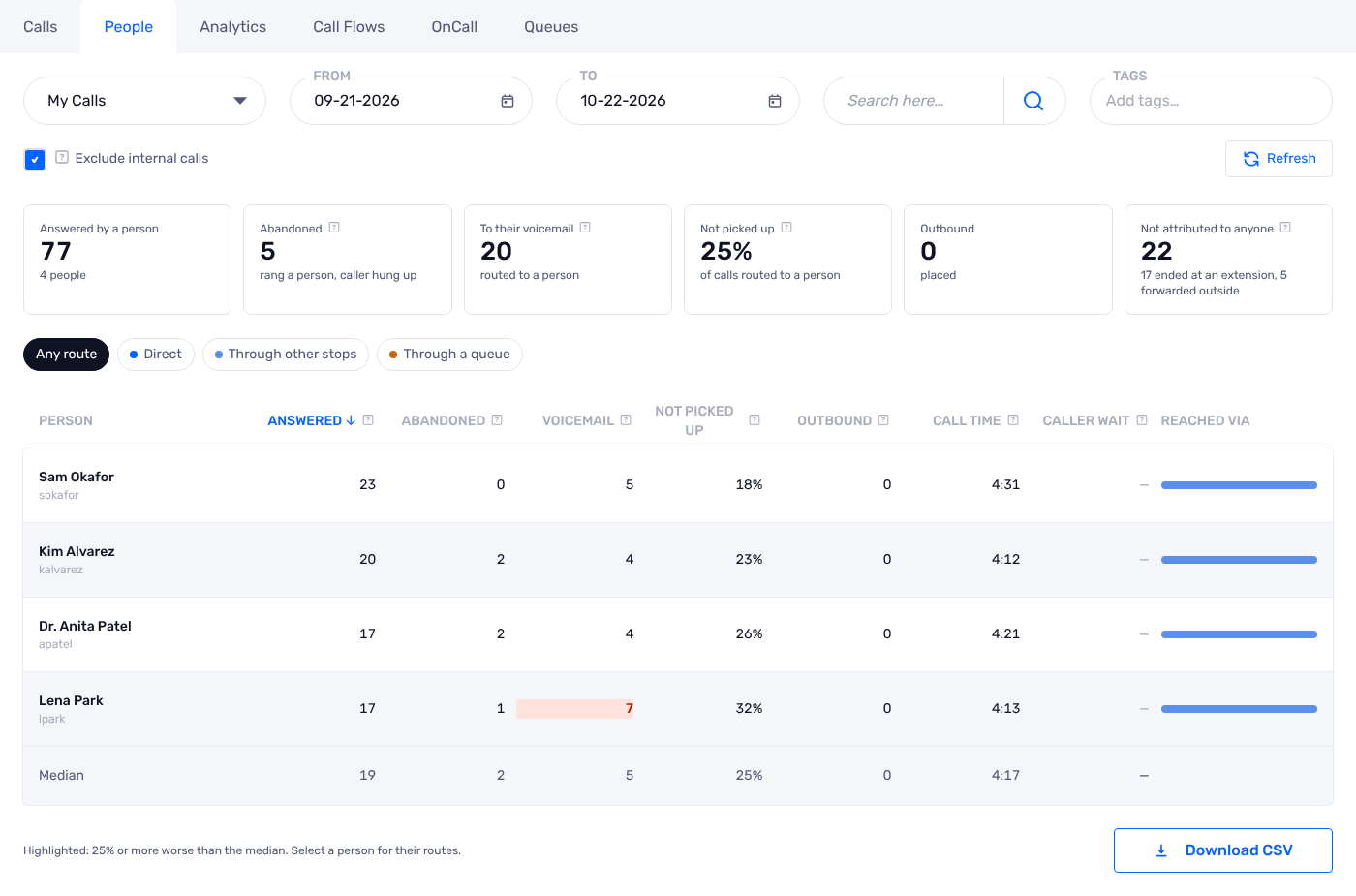
The cards at the top give the totals: calls answered by a person, abandoned calls, calls that went to voicemail, calls that were not picked up, outbound calls, and calls that did not reach a person.
The table has one row for each person:
- Answered:
Calls that the person answered.
- Abandoned:
Calls that rang the person, but the caller hung up first.
- Voicemail:
Calls to the person that went to voicemail.
- Not picked up:
The percentage of calls routed to the person that the person did not answer.
- Outbound:
Calls that the person made.
- Call Time:
The average length of the calls of the person.
- Caller Wait:
How long callers waited before the person answered.
- Reached Via:
How calls got to the person: direct, through other stops, or through a queue.
The last row is the median of all persons. A value that is 25% or more worse than the median has a red mark. Use the route buttons (Any route, Direct, Through other stops, Through a queue) to see only one type of route. Click a person to see their routes.
Download CSV downloads the table.
Analytics
The Analytics tab answers questions about your calls with a chart.
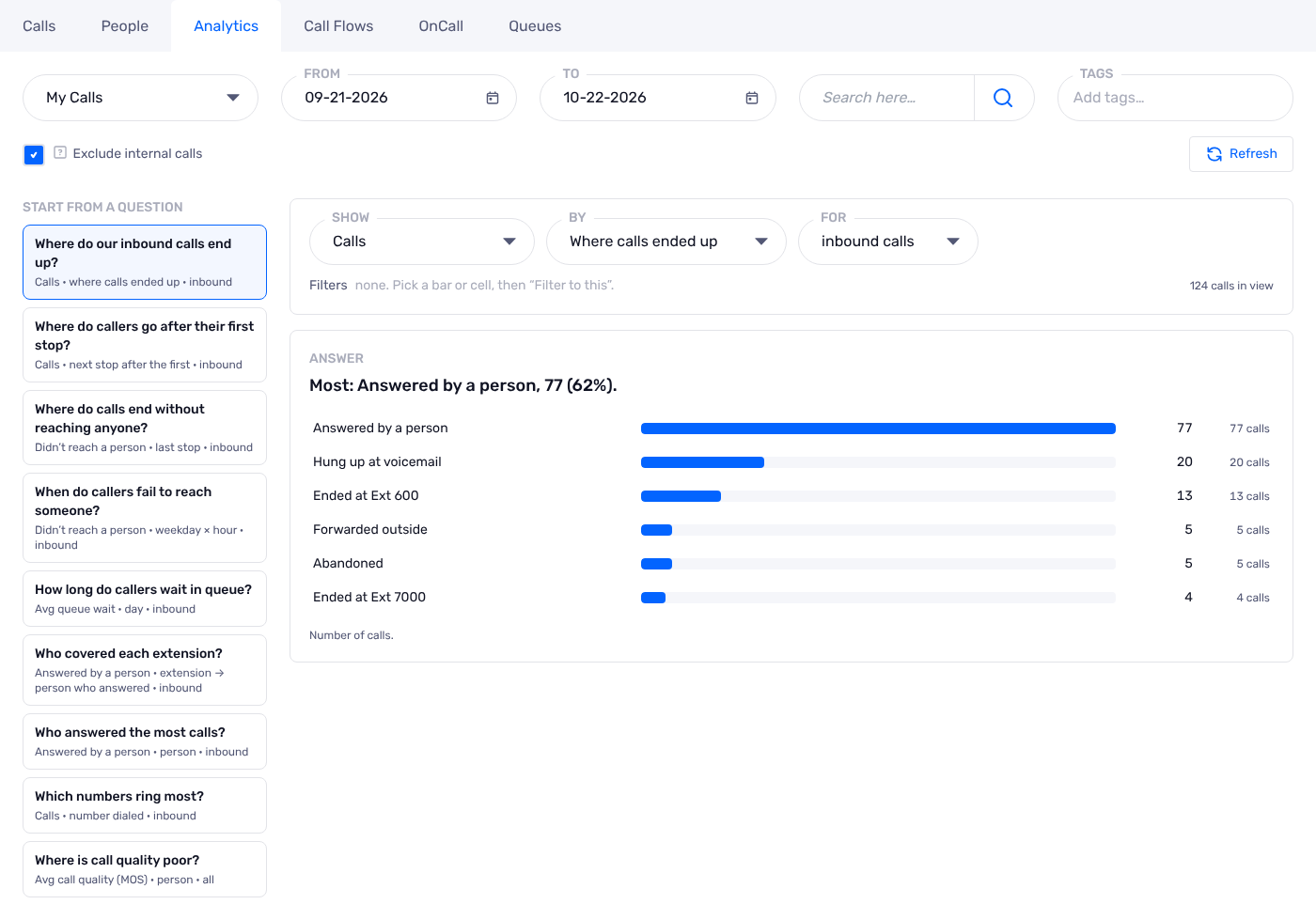
On the left, click a question, for example
Where do our inbound calls end up?orWho answered the most calls?.Or, make your own chart with
Show,ByandFor.Click a bar or a cell, then click
Filter to thisto see only those calls. The filter applies to the other tabs too.
Note
Use the Tags filter to compare how each type of call is handled.
Call Flows
The Call Flows tab shows where your inbound calls go. From left to right, it shows the number dialed, the first stop, the next stop, and the outcome. The outcome is Answered by a person, Hung up at voicemail, Abandoned or Forwarded outside.
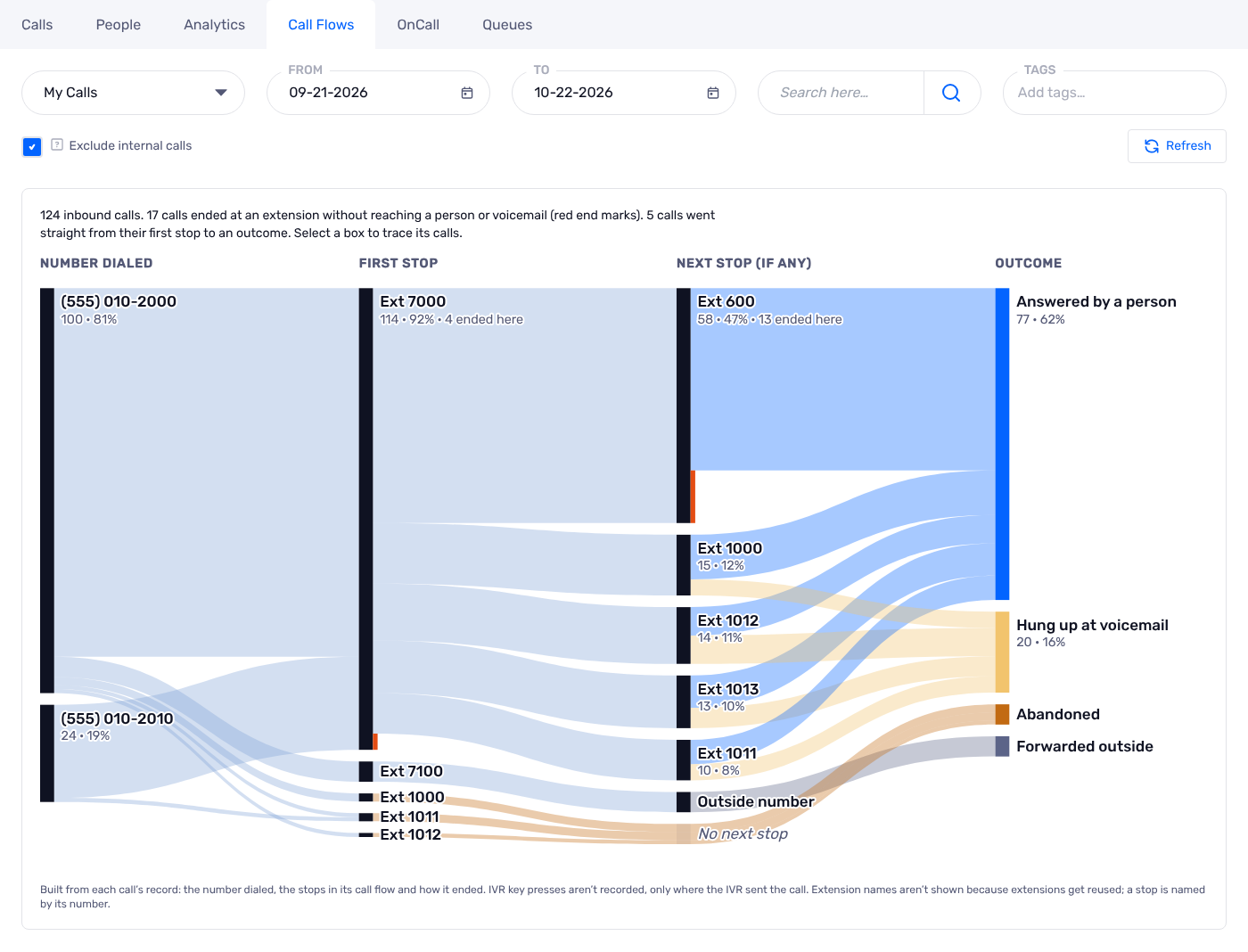
A wide band means many calls.
A red mark shows calls that ended at that stop without reaching a person or voicemail.
Click a box to see only the calls that went through it.
The chart uses the call records. It shows where an auto attendant sent the call, not the keys that the caller pushed. A stop shows its extension number.
Queues
The Queues tab shows the Queue Board: the live status of the call queues that you can see.
- Waiting now:
The callers who are waiting, and how long they have waited.
- Queues:
The status of each queue, and the calls answered and missed today.
- Agents:
Each agent, their current call, and the queues they are in.
The Queue Board refreshes by itself. To show it on a wall screen, open it in its own window. The dashboard also shows queue status. See Queues on the dashboard. For how queues work, see Queues.