Contacts
Contacts give names to the numbers and the email addresses that you call, text, fax and meet with. Your contacts are the same on all your devices.
Contact Types
There are three kinds of contacts:
- Private:
Only you can see these contacts. You manage them.
- Shared:
All users on your account can see and use these contacts.
- Directory:
The other users and extensions on your account. We manage these contacts for you. You cannot add or change a directory contact. To change a user, go to Settings › Users.
We use contacts for these items:
Names on calls, voicemail, texts, faxes and meetings. On the dashboard and in Messages & Faxes, the contact name replaces the caller ID name. In Calls, the contact name shows when the call has no caller ID name.
Faxes. Select a contact when you send a fax.
Meeting guests. A guest who joins a meeting with an email address is matched to the contact that has that email address. A person who dials in is matched by phone number.
The directory on desk phones.
Contact Matches
When we show a name from your contacts, we also show how we found it:
Put the pointer on the name to see the number or the email address that matched the contact.
Click the small contact icon next to the name to open the contact.
You see this in the dashboard, in Calls (callers, called numbers and meeting participants), and in Messages & Faxes (senders and recipients). For a fax, only the fax numbers of a contact are matched.
When a number or a meeting guest is not one of your contacts, an Add to Contacts link shows. Click it to make a new contact. We fill in the number, or, for a meeting guest who joined by email, the email address.

Contact Page
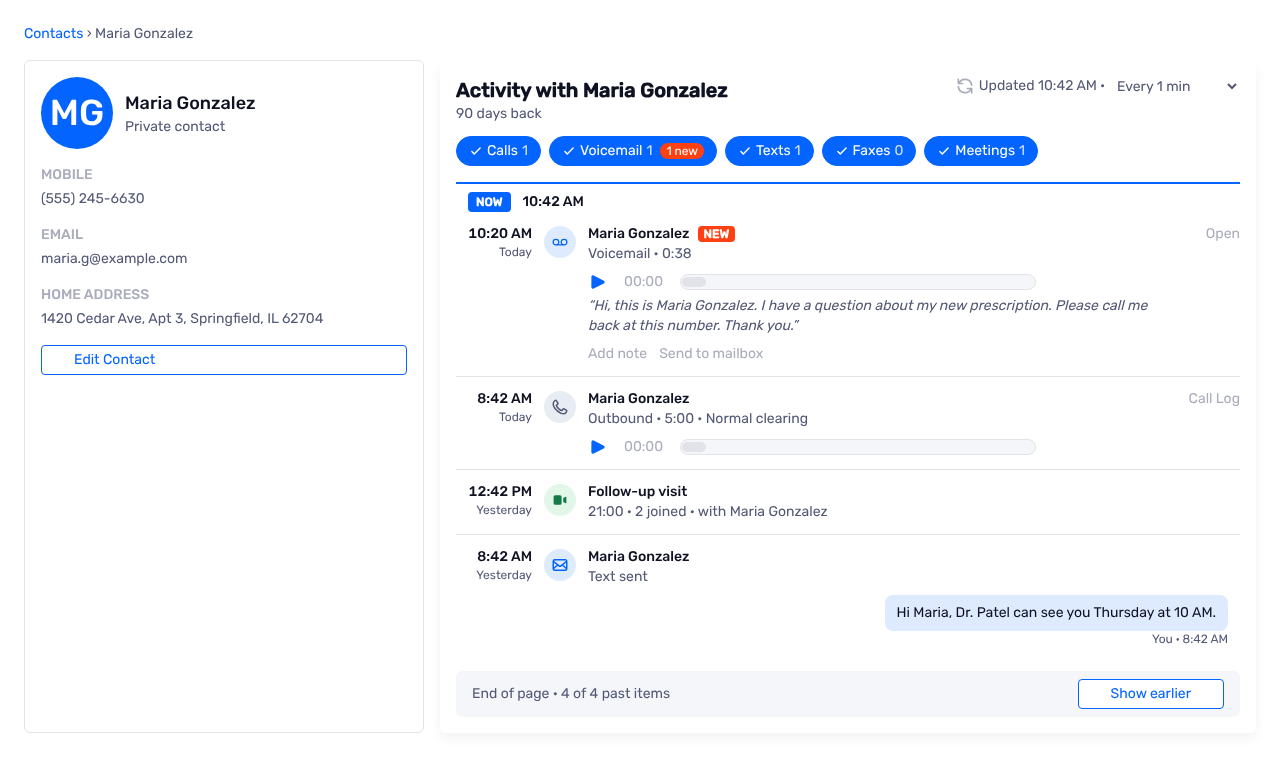
Click a contact to open the contact page. The left side shows the numbers, the email address and the addresses of the contact. The right side shows Activity with the contact for the last 90 days:
Calls, voicemail, texts and faxes to and from the numbers of the contact.
Meetings that the contact joined, as a guest with their email address or by phone. Upcoming meetings are not shown here, because nobody has joined them yet.
The activity uses the same controls and items as the dashboard timeline. See Timeline.
Add or Edit a Contact
To add a contact, click New Contact on the Contacts page, or click Add to Contacts next to a number.
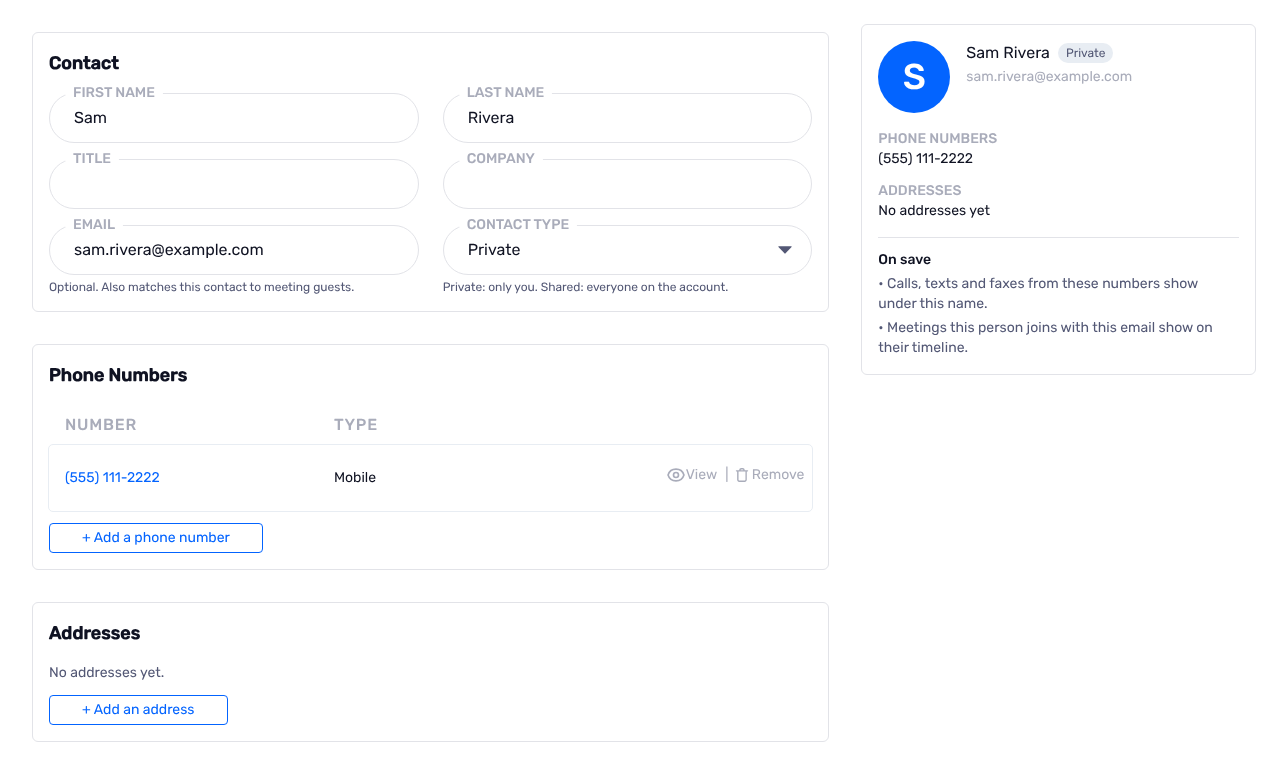
- Contact:
The first name, the last name, the title, the company, the email address and the contact type (
PrivateorShared). The email address is optional. We use it to match the contact to meeting guests.- Phone Numbers:
Click
+ Add a phone number. Type the number and select the type, for exampleMobileorWork Fax. Use a fax type for fax numbers.- Addresses:
Click
+ Add an address. Select the type (Home,WorkorOther) and type the address lines, the city, the state and the ZIP code.
The summary on the right shows the contact as you type.
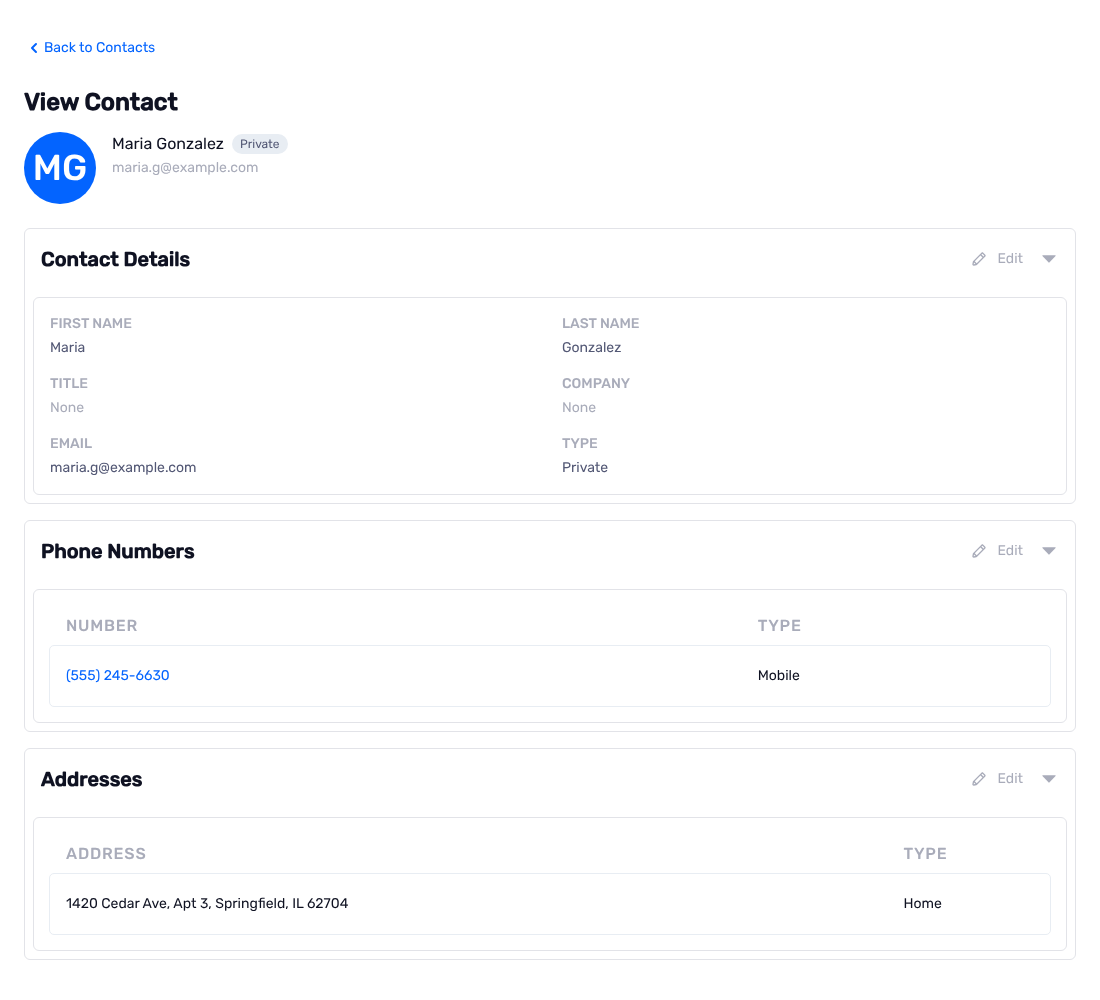
When you open a contact to edit it, the page has three parts: Contact Details, Phone Numbers and Addresses. Click Edit on a part, make the changes, and click Save. Each part shows a short summary when it is closed.
Synced Contacts
When your account has an EHR integration (for example ElationEHR or ModMedEMA), we copy patients from the EHR into your contacts. These contacts have a purple badge with the name of the integration.
Important
The next sync replaces the name, the numbers, the address and the email address of a synced contact. Make these changes in the EHR, not in the portal.
Import Contacts
On the Contacts page, Import Contacts adds contacts from a CSV file. Click Example to download a file that shows the columns.