Dashboard
The dashboard is the first page you see after you log in. It shows what is new, what needs your attention, and how your calls are going.
Dashboard Views
The dashboard has three views. Use the switch at the top right of the page to change the view:

- Classic:
Your details, news, unread message counts and call statistics. This is the default view. See Classic.
- Timeline:
One list of your calls, voicemail, texts, faxes, meetings and on-call changes, in time order. See Timeline.
- Admin:
The status of the whole account. Only administrators see this view. See Admin Board.
The dashboard remembers your view in this browser.
When the account has a problem that an administrator must fix, a red number shows on Admin. The number is the count of account problems, for example a failed payment. Put the pointer on the number to see the problems. The red number shows in all three views, so that you see it when you use Classic or Timeline. For the list of problems, see Needs Attention.
Classic
The Classic view answers three questions: does anything on my account need attention, what is new, and how are my calls going.
Left Column
The left column shows your own details: your name, extension, voicemail PIN, and your Direct, Main Account and Fax numbers. You can play your voicemail greetings there, open My Phone with My Settings, or start the web phone in your browser with Launch Web Phone. Below that are demo videos and links to support, resources and the blog.
In the Support panel, the Downloads link opens the Downloads page. Go there to install the softphone and the Sync Tool on your computer. See Downloads.
Center Pane
The center pane has two kinds of content:
Notices. These show only to administrators, and only when something on the account needs action. When nothing needs action, you do not see any notices.
Panels.
Stay Up to Date,Recent ActivityandMy Performanceare always shown.
The numbers in the center pane are loaded when you open the dashboard. They do not update while the page is open. To see new numbers, reload the page or go back to the dashboard.
Notices
Notices are shown at the top of the center pane.
- Billing notice:
A box at the top right shows when the account has a payment problem. Only one box shows at a time. The most important problem is shown first:
Payment issue: an invoice is not paid.Your card has expired: the card on file has expired.Your card is about to expire: the card on file will expire soon.
Click
Go to Billingto update the payment method. Click the X to hide the box. It shows again the next time you open the dashboard if the problem is still there.If your account pays its invoices by check or wire transfer (automatic collection is off), you do not see the card notices. The
Payment issuenotice still shows when an invoice is due or past due.- KYC profile:
FCC rules require voice customers to verify their identity. This is called Know Your Customer (KYC). A complete profile helps keep your calls from being labeled as spam. The notice shows when the profile is missing any of these: legal company name, tax ID, contact first and last name, address, city, state, ZIP code or website. It also shows when the KYC information has not been confirmed in the last 11 months.
Go to Settingsopens the Account page in Settings.
Stay Up to Date
News from us. Use the switch to choose what you read:
- What’s New?:
Announcements about new features and changes.
- Helpful Tips:
Tips for getting more out of your phone system.
One post is shown at a time, with its title, its date, and a short summary. Click read more to open the whole post in a new tab. Use the page controls under the post to see older posts.
Recent Activity
How many new (unread) messages are waiting. There is one tile for each type of message:
- New Voicemails:
Voicemail messages you have not listened to or marked as read.
- New Faxes:
Faxes you have received and not opened.
- New Texts:
Text messages you have not read.
Each tile shows two numbers, for example 3/5:
The first number is Mine: new messages in your own mailbox.
The second number is Shared: new messages in mailboxes that are shared with you, such as a front desk or department mailbox. See Mailbox Delegations.
Click a tile to open Messages & Faxes, showing only that type of message. When you read a message, the count goes down the next time you open the dashboard.
My Performance
Statistics about phone calls. They help you see how quickly calls are answered and how many callers do not reach a person.
Choose the period. Use the switch at the top: Day, Week, Month or Year. The period always ends now. For example, Day is the last 24 hours, not the calendar day, and Month is the last month up to now. The dashboard remembers your choice in this browser.
Which calls are counted. For most users, the statistics use your own calls. For administrators, they use the calls of the whole account. Incoming, outgoing and internal calls are all counted.
How to read the numbers. Times are shown as minutes and seconds (mm:ss). Percents are a share of all calls in the period, not only incoming calls. If there were no calls in the period, the tiles show 00:00 and 0.00%.
- Average Ring Time:
How long calls rang before they connected, on average. Calls that were never answered count with the full time they rang. A high number means callers wait a long time before someone picks up.
- Average Hold Time:
How long callers were kept on hold, on average. Only incoming calls that were put on hold are counted. Calls with no hold do not lower this number.
- Average Call Time:
How long calls lasted after they connected, on average. Calls that never connected count as zero, so many missed calls make this number lower.
- Calls to Voicemail:
The percent of calls that were sent to a voicemail box.
- Unanswered calls:
The percent of calls where an outside caller hung up while the call was still ringing, before anyone answered. Calls that went to voicemail are not counted here; they are counted in
Calls to Voicemail.- Calls with hold:
The percent of calls that were incoming calls put on hold at least once.
For details about single calls, see the call log.
Timeline
The Timeline view shows your activity as one list. The newest items are at the top. A blue line marks NOW. Items above the line are coming up, for example a meeting or the start of an on-call shift. Items below the line already happened.
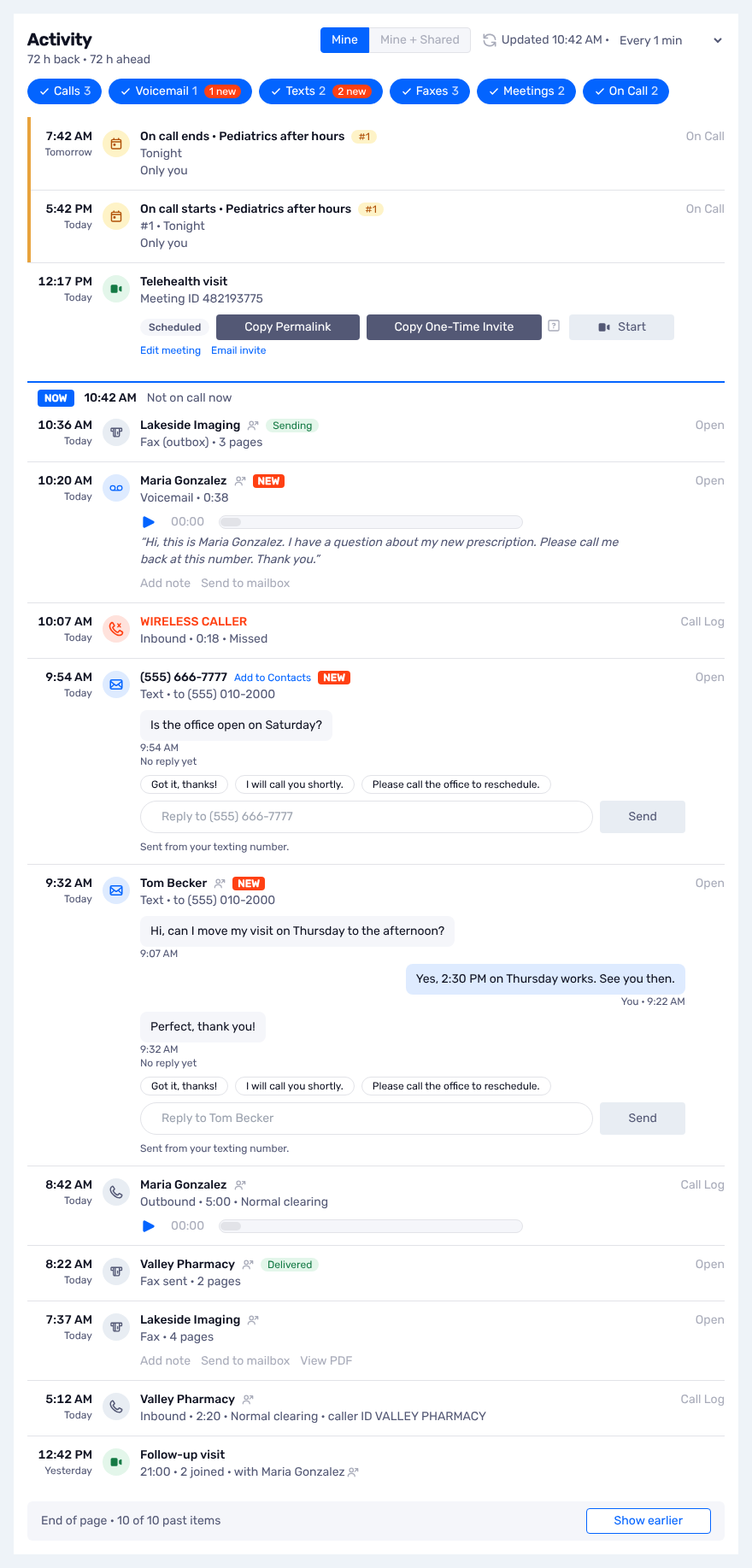
Controls

- Range:
The text under
Activityshows how far the list goes. When you have a meeting in the next 72 hours, the list shows 72 hours back and 72 hours ahead. When you do not, it shows 144 hours (6 days) back.- Type chips:
There is one chip for each type of item:
Calls,Voicemail,Texts,Faxes,MeetingsandOn Call. All types show at the start. Click a chip to hide that type. Click it again to show the type again. Each chip shows how many items of that type are in the list, and how many are new (unread). The dashboard remembers the hidden types in this browser.Meetingsshows when telemedicine is on for you, or when the list has meetings.On Callshows only when you are a member of an on-call group. When you hideOn Call, we do not load your on-call shifts.
- Mine / Mine + Shared:
Mineshows messages in your own mailbox.Mine + Sharedalso shows messages in mailboxes that are shared with you. A shared message shows the name of its mailbox. See Mailbox Delegations.- Refresh:
Click the refresh icon to load the list again now. The menu next to it sets how often the list refreshes by itself:
Off,Every 30 s,Every 1 min,Every 5 minorEvery 10 min. The default is every minute. Between refreshes, we check for new messages. When a new voicemail, text or fax arrives, the list loads again at once. A text that you send from the dashboard shows in a few seconds.
Note
A text that you send from another device, for example the mobile app, shows at the next refresh, or when you click the refresh icon.
Items
Each item shows the time, an icon for the type, a name, and a short description. A name that comes from your contacts has a small contact icon. Click the icon to open the contact. Put the pointer on the name to see the number or the email address that matched the contact. See Contact Matches. A number that is not in your contacts has an Add to Contacts link. Click it to make a new contact with the number filled in.
New (unread) items have a red NEW label.
- Call:
A call to or from you. The description shows the direction, the duration and the result, for example
Missed,VoicemailorNormal clearing. A missed call shows in red. When the call was recorded, you can play the recording.Call Logopens the call in Calls.
- Voicemail:
A voicemail message. Click the play button to listen. The transcription shows under the player.
Add noteadds a note to the message.Send to mailboxcopies the message to another mailbox.Openopens the message in Messages & Faxes.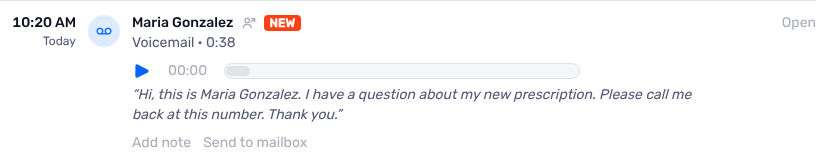
- Text:
A conversation. All texts to and from one number are shown together as one item, at the time of the last text. Texts from the other person are on the left. Your texts are on the right. A gap of more than 12 hours starts a new conversation.
When the last text is from the other person, the item shows
No reply yetand a reply box. Click a quick reply, or type your text, and clickSend. We send the text from your texting number. A text to a group number goes to the group thread.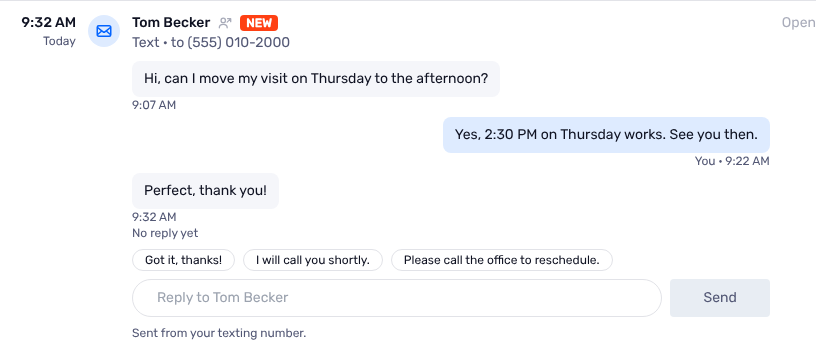
- Fax:
A fax that you received or sent. For a fax that you received,
View PDFopens the fax, andAdd noteandSend to mailboxwork as for voicemail. A fax that you sent shows its status:QueuedorSending: the fax is in the outbox.Delivered: the fax was sent.Failed, with the reason: the fax was not sent.
Openopens the fax in Sent or in the outbox.

- Meeting:
A meeting that you host.
An upcoming meeting shows above NOW, with its meeting ID, its status and the invite buttons. Click the meeting name to open the meeting on the Conferences page.
Edit meetingchanges the meeting.Email invitesends the invitation by email.Email inviteis not available when the meeting has no public access. Meetings show up to 72 hours ahead.A meeting that was held shows its duration and the number of participants. When a participant is one of your contacts, the contact name shows after
with. Each name has a contact icon. Put the pointer on a name to see the email address or the number that matched the contact.


- On call:
When your on-call shift starts and when it ends, for each on-call group that you are a member of. The item shows the group, your place in the call order (for example
#1) and the shift. Shift changes show up to 72 hours ahead. While you are on call, an orange line runs along the left side of the list. When the start or the end of the shift is outside the list, the line showsOn call sinceorOn call until.When your own OnCall rules change where your calls go, a thin
OnCall Rulesrow shows the change.Edit scheduleopens your OnCall settings in My Phone. See OnCall Settings.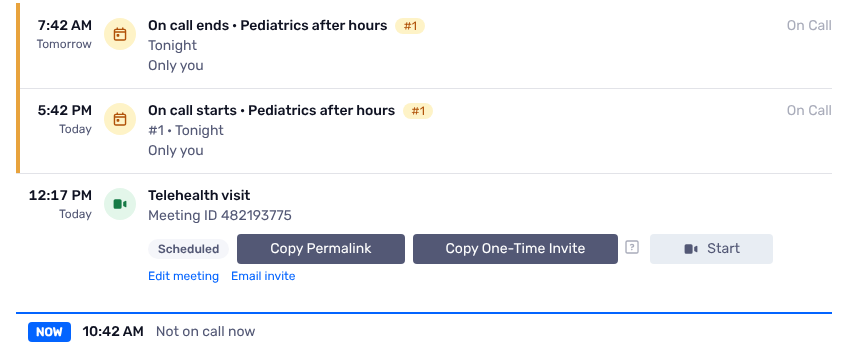
- Free trial:
During a free trial, the end of the trial shows at the top of the list. An administrator can click
Sign Up Nowto add a payment method. When the trial has ended, a red row shows at NOW.
The NOW line shows the time. When you are on call, it also shows the group, for example On call · Pediatrics after hours (#1).
More Items
The list shows 10 past items at a time. At the end of the page, click Show more (or Show earlier when all items in the range are shown). After that, each time you get to the bottom of the list, we show the next page. When there are no more items in the range, we load 72 hours more. Back to top goes to the top of the list. Collapse to one page goes back to the first page.
Quick Actions
Round buttons at the bottom right of every page let you start a meeting, a text or a fax from anywhere in the portal.

- New meeting:
Makes a meeting that you host. This button shows only when telemedicine is on for you. See New meeting.
- Send a text:
Sends a text from your texting number. This button shows only when texting is on for you.
- Send a fax:
Opens the new fax page. This button shows only when you can send faxes. It is not shown on the new fax page.
Send a text
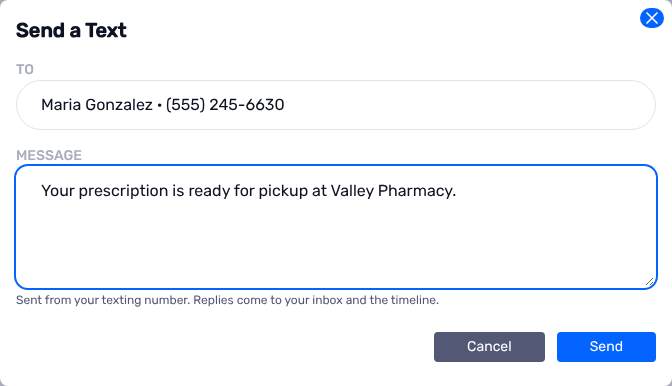
Click the text button.
In
To, type a name or a number. Select a contact from the list, or use the number that you typed.Type the message.
Click
Send.
We send the text from your texting number. Replies come to your inbox and show on the timeline.
New meeting
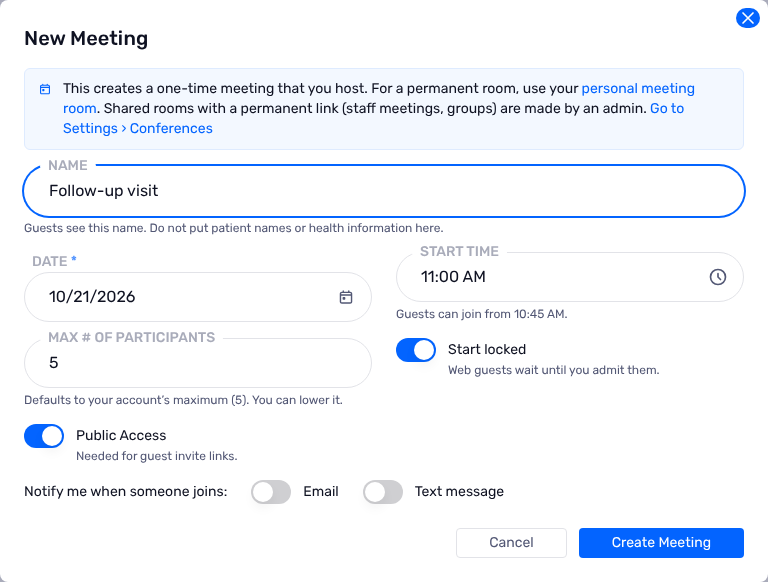
Click the video button.
Type a name for the meeting. Guests see this name. Do not put patient names or health information in the name.
Set the date and the start time.
Set the other options if necessary. Each meeting gets the longest duration that your account allows.
Click
Create Meeting.
After you save, the Meeting scheduled window shows the meeting with its links:
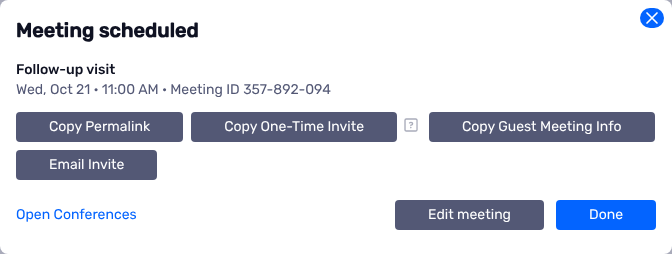
Click the meeting name, or
Open Conferences, to open the meeting on the Conferences page.Use
Copy Permalink,Copy One-Time Invite,Copy Guest Meeting InfoorEmail Inviteto invite guests.Edit meetingopens the meeting again.
The dashboard timeline shows meetings up to 72 hours ahead. When the meeting is later than that, the window tells you that it will show on the dashboard when it is 72 hours away. Until then, find it on the Conferences page.
For more information about meetings, see Telemedicine.
Downloads
The Downloads page has apps that you install on your computer. To open it, click Downloads in the Support panel of the dashboard. Each app shows its version, the date of the last update, the operating system and the size of the download. Both apps are for Windows.
- RingRx Desktop Client:
A softphone for Windows. You can make and answer calls, read messages, and get notifications on your computer without the portal. Click
Download Appand run the installer. To use a softphone without an installation, clickLaunch Web Phoneon the dashboard.- RingRx Sync Tool:
Beta. Copies your records to your computer, so that you have your own archive. It saves call records, voicemail, faxes and call recordings. Click
Download Tooland run the installer.
If a download button is gray, the download is not available now. Try again later, or open a support ticket.
For the mobile app, see Mobile.
Admin Board
The Admin view shows the status of the whole account. Only administrators see it.
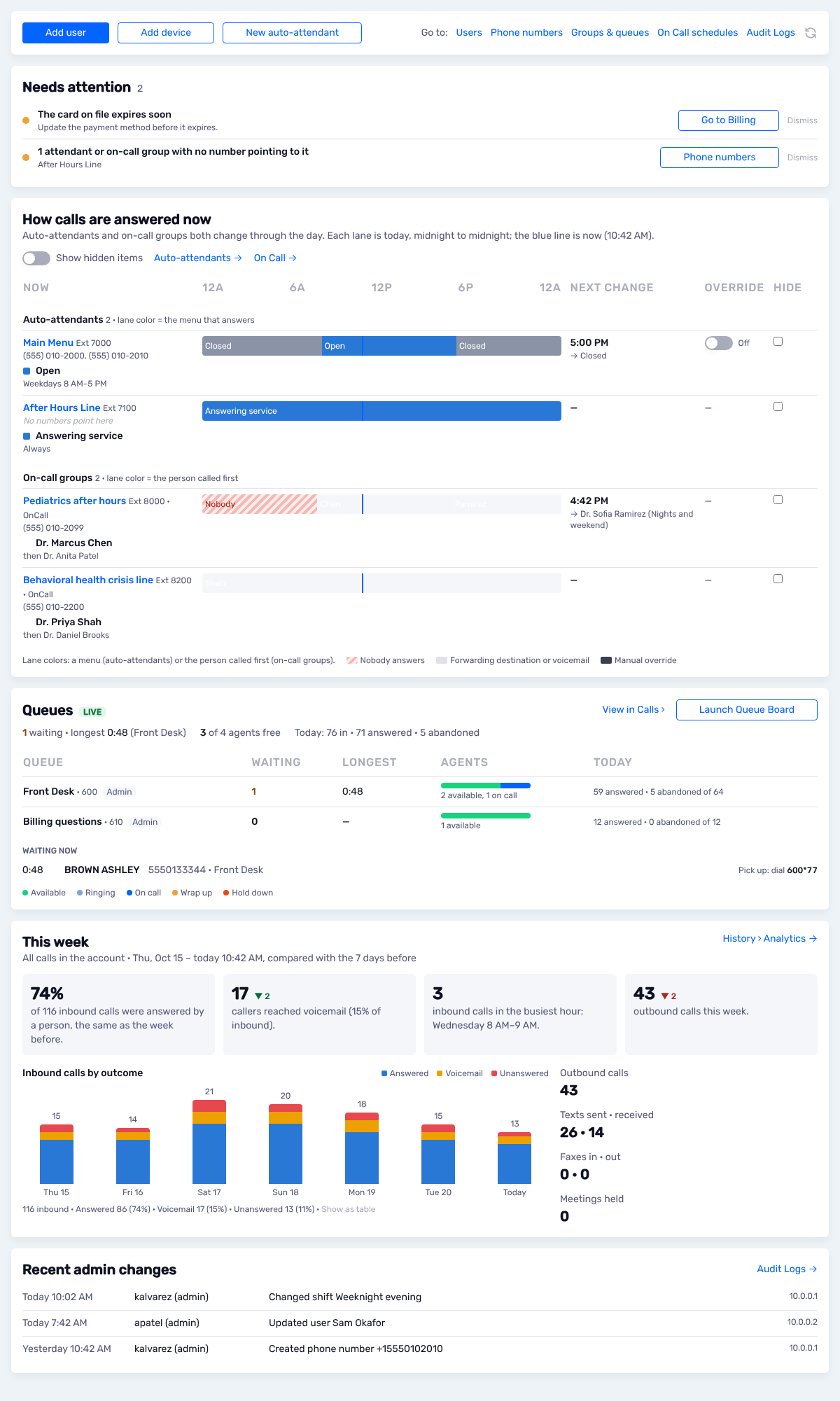
The bar at the top has Add user, Add device and New auto-attendant, and links to Users, Phone numbers, Groups & queues, On Call schedules and Audit Logs. The refresh icon loads all sections again.
Needs Attention
A list of problems on the account. Each line shows the problem, a count, and a button that opens the page where you fix it. Red problems are first.
Account problems show to administrators in every dashboard view. They are the red number on Admin.
Problem |
Color |
When it shows |
|---|---|---|
|
Orange |
The trial ends in 7 days or less, and the account has no payment method. |
|
Red |
The trial ended and the account has no paid subscription. |
|
Red |
An invoice could not be charged. |
|
Orange |
An invoice is due. |
|
Red |
The card on file has expired. Not shown when the account pays by check or wire transfer. |
|
Orange |
The card on file expires soon. Not shown when the account pays by check or wire transfer. |
|
Orange |
The account has no registered texting (10DLC) campaign. Carriers can block texts from numbers without one. |
|
Orange |
The legal business details (KYC) are not complete. |
|
Orange, then red |
The business details must be confirmed each year. Orange in the last month before the date. Red when the date has passed, or when the details were never confirmed. |
Call and setup problems show only on the Admin board, in orange:
Problem |
When it shows |
|---|---|
|
An auto-attendant has no menu that answers at some time in the next 24 hours. Not shown while an override is on. |
|
An on-call group in OnCall mode has nobody on call at some time in the next 72 hours. |
|
Callers are waiting in a queue and no agent is free or ringing. |
|
Nobody can answer the queue. |
|
A phone number sends calls to an extension that is not on the account. |
|
No phone number sends calls to these auto-attendants or on-call groups. |
|
Every try to send these faxes failed. |
You can click Dismiss to hide an orange problem for 7 days in this browser. You cannot hide a red problem. It shows until the problem is fixed.
Note
We check the account problems one time each hour, and again when you leave the Billing page or the Campaign registry. After you fix a problem, it can take a short time to go away.
How Calls Are Answered Now
One lane for each auto-attendant and each on-call group. Each lane shows today, from midnight to midnight. A blue line marks now.
For an auto-attendant, the lane color is the menu that answers. For an on-call group, the lane color is the person that we call first. Red stripes mean that nobody answers.
Under the name are the phone numbers that send calls to it, or
No numbers point here.The left column shows who answers now, and why, for example the schedule that matches.
Next changeshows when the answer changes, and to what.Overrideturns the manual override of an auto-attendant on or off.Select
Hideto hide a lane that you do not need. Turn onShow hidden itemsto see hidden lanes again.
Queues
The live status of the queues that you can see. It is the same data as the Queue Board. It refreshes every 30 seconds, and every minute when nobody is waiting.
The summary line shows how many callers are waiting, the longest wait, how many agents are free, and today’s totals.
Each queue shows the callers waiting, the longest wait, the agents, and today’s answered and abandoned calls.
Waiting nowlists the callers in the queues. When you manage a queue, it shows the code to pick up the call.Launch Queue Boardopens the Queue Board in its own window.View in Callsopens the Queues tab in Calls.
This Week
The calls of the whole account in the last 7 days, compared with the 7 days before. The tiles show the percent of incoming calls that a person answered, the calls that went to voicemail, the busiest hour, and the outgoing calls. The chart shows the incoming calls for each day by result. Show as table shows the same numbers as a table. The numbers on the right show outgoing calls, texts sent and received, faxes, and meetings.
Recent Admin Changes
The changes that administrators made in the last 7 days, from the audit log. Sign-in and sign-out events are not shown. Audit Logs opens the full log.